| |
TowGeom - What's New
Version v3.6.06 · Released 3 September 2026 |
| Trouble viewing this email or its images? View it in your browser. |
| TowGeom v3.6.06 makes everyday tower work faster and more dependable, with flexible PatGen editing, independent 2D and 3D AutoCAD script output, whole-tower pattern validation, and safer geometry and clearance workflows. |
At a glance
8 featured updates • 13 additional changes |
|
|
1. PatGen Ghost Nodes
What it does: Create construction-only control points in PatGen without allowing them to become member endpoints or ordinary TowGeom output nodes.
|
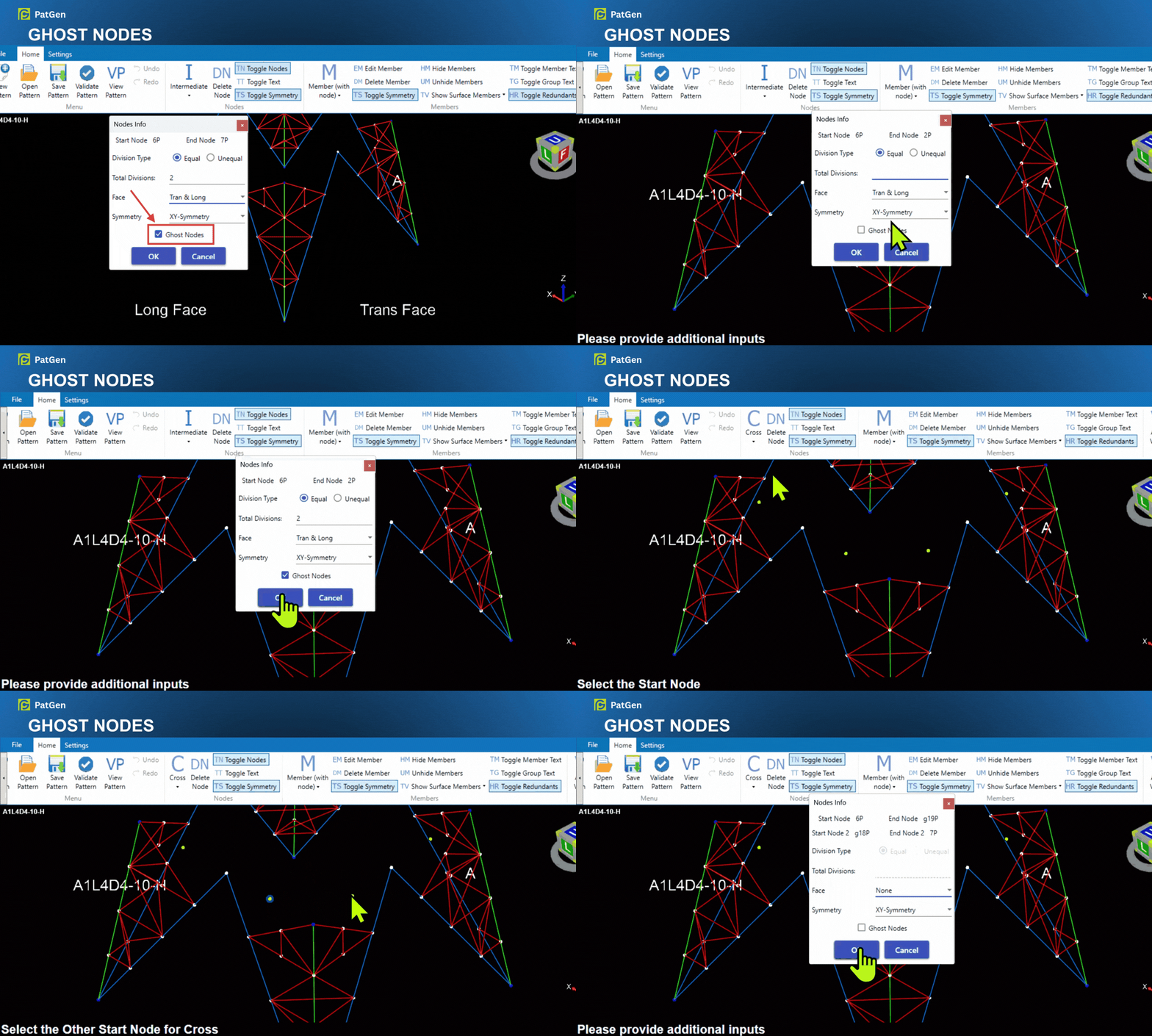 |
| Where to find it: PatGen > Home > Nodes > any node-creation tool > Ghost Nodes |
How to use:
- Open a pattern and start the required node-creation tool from the Nodes group.
- Choose the defining nodes or references, select Ghost Nodes in the node dialog, and confirm the operation.
- Use the new point as a construction reference, then save and validate the pattern normally.
|
Highlights:
- Ghost-node status is saved with the pattern and shown with a distinct visual treatment.
- Topology safeguards and validation reject ghost nodes where normal geometry nodes are required, while TowGeom resolves supported construction references safely during output.
|
|
2. Independent 2D and 3D AutoCAD Script Output
What it does: Choose 2D.scr and 3D.scr independently so each TowGeom run creates only the AutoCAD script outputs you require.
|
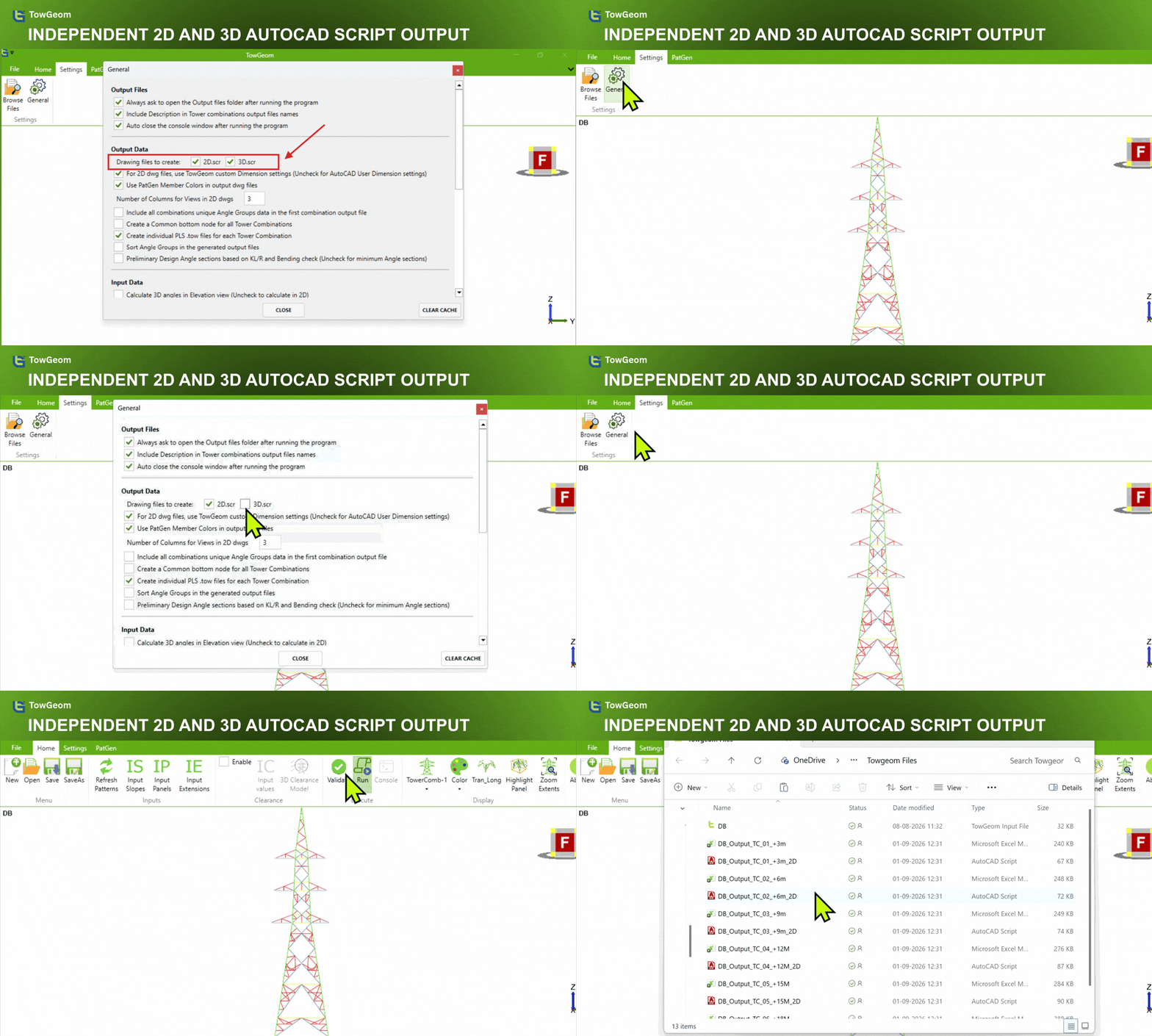 |
| Where to find it: TowGeom > Settings > General > Output Data > Drawing files to create |
How to use:
- Open General Settings and locate Drawing files to create under Output Data.
- Select 2D.scr, 3D.scr, or both.
- Run TowGeom normally; the selected script types are generated with the output.
|
Highlights:
- The 2D and 3D script choices can be enabled separately or together.
- This avoids generating an unused .scr file when a workflow needs only one drawing type.
|
|
3. Divide PatGen Members by Adding Nodes
What it does: Create ordinary nodes directly on an existing PatGen member and automatically rebuild it as connected member divisions while keeping matching face and symmetry copies consistent.
|
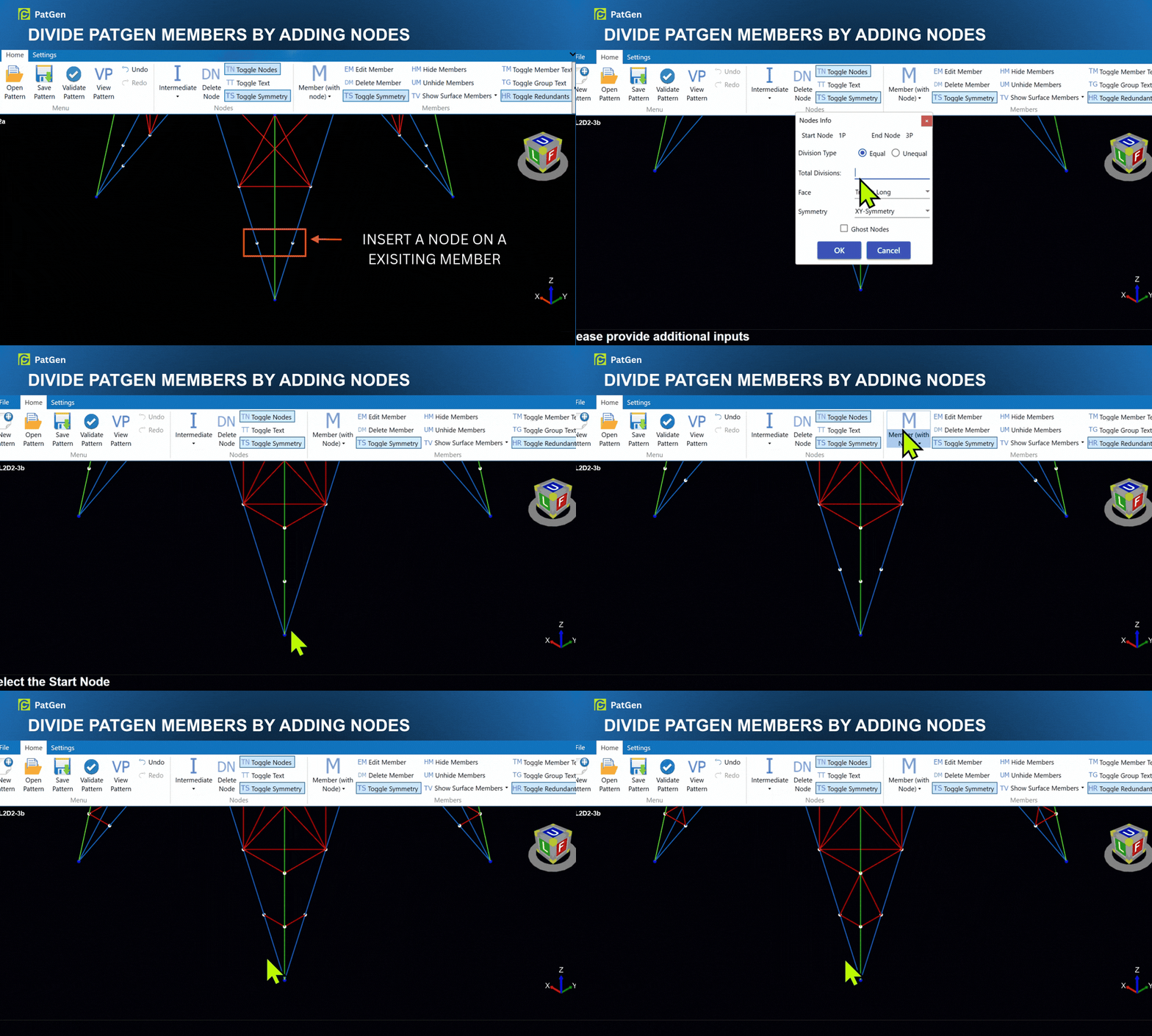 |
| Where to find it: PatGen > Home > Nodes > Intermediate |
How to use:
- Choose Intermediate and select the existing member's start and end nodes.
- In Nodes Info choose Equal or Unequal divisions, the required Face and Symmetry, and leave Ghost Nodes cleared.
- Confirm the operation, then review the divided members and the Member subdivisions updated notification.
|
Highlights:
- PatGen validates symmetry and paired-face topology before committing, and restores the previous pattern if the member cannot be divided safely.
|
|
4. Undo and Redo for PatGen
What it does: Reverse recent PatGen pattern edits or restore an undone action without rebuilding the affected geometry manually.
|
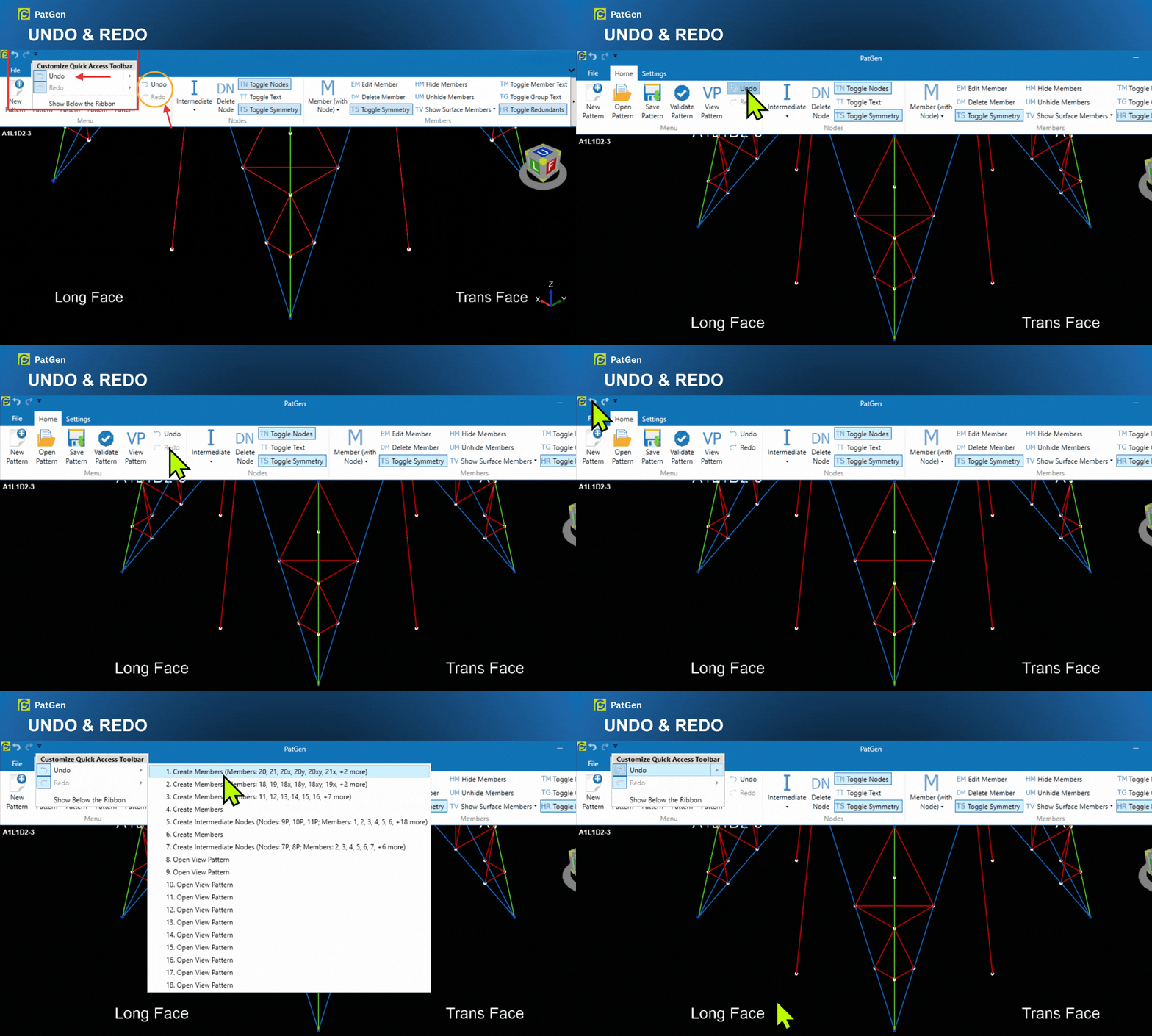 |
| Where to find it: PatGen quick-access toolbar, or Ctrl+Z and Ctrl+Y |
How to use:
- Make one or more edits to the open pattern.
- Use Ctrl+Z or the Undo quick-access control to reverse the latest recorded action.
- Use Ctrl+Y or the Redo control to restore an action that was undone.
|
|
5. Reorder PatGen Member Groups
What it does: Reorder complete member groups manually or apply the recommended group arrangement before saving changes.
|
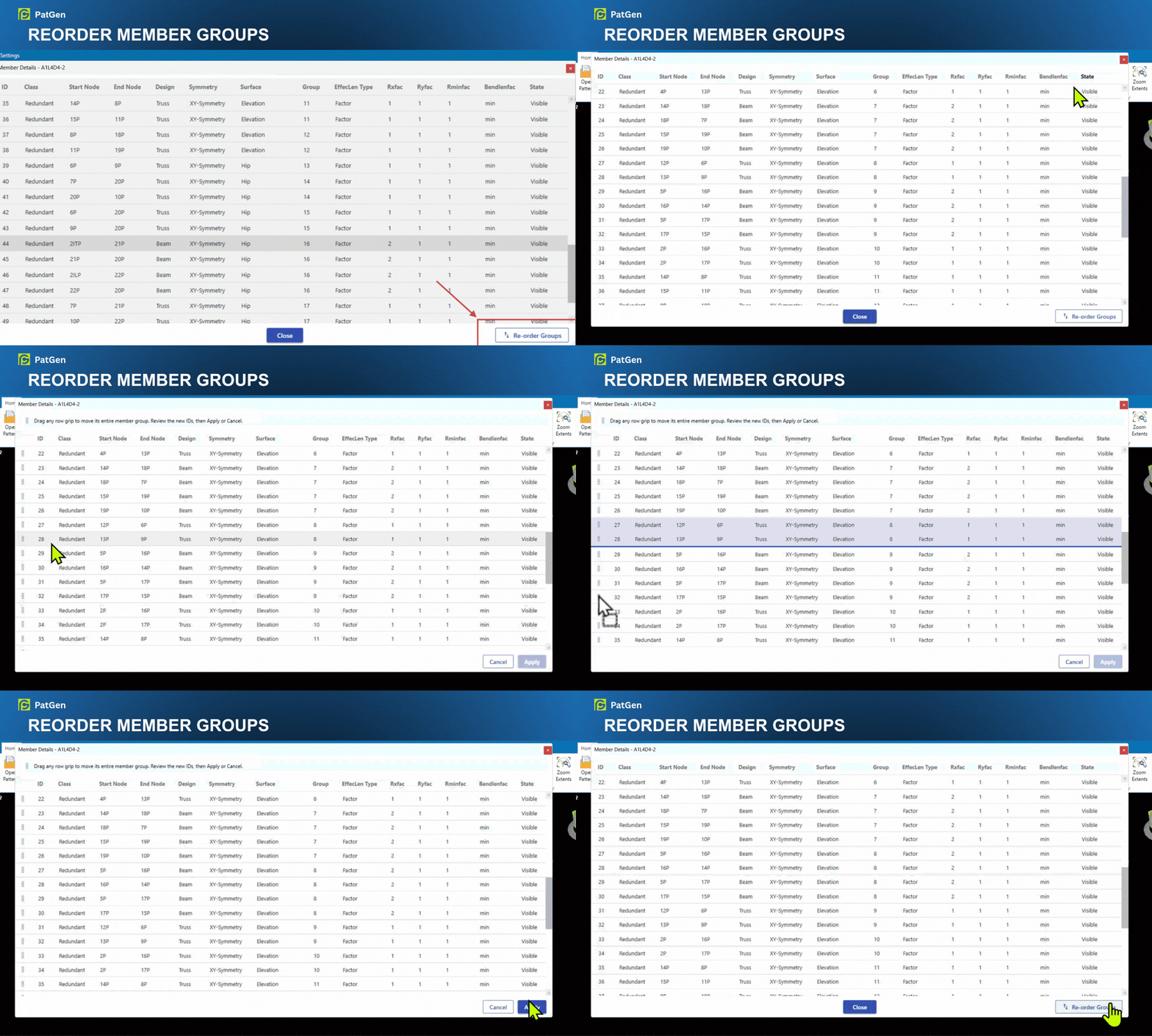 |
| Where to find it: PatGen > Home > Effective Length > Member Details |
How to use:
- Open Member Details and drag a group row grip to move the complete group, or choose Auto Arrange.
- Review the staged member IDs, then choose Apply or Cancel.
|
Highlights:
- Auto Arrange follows the recommended member-class order.
|
|
6. Recent and Sorted PatGen Patterns
What it does: Return to recently used patterns and change the pattern-list order when reopening library content.
|
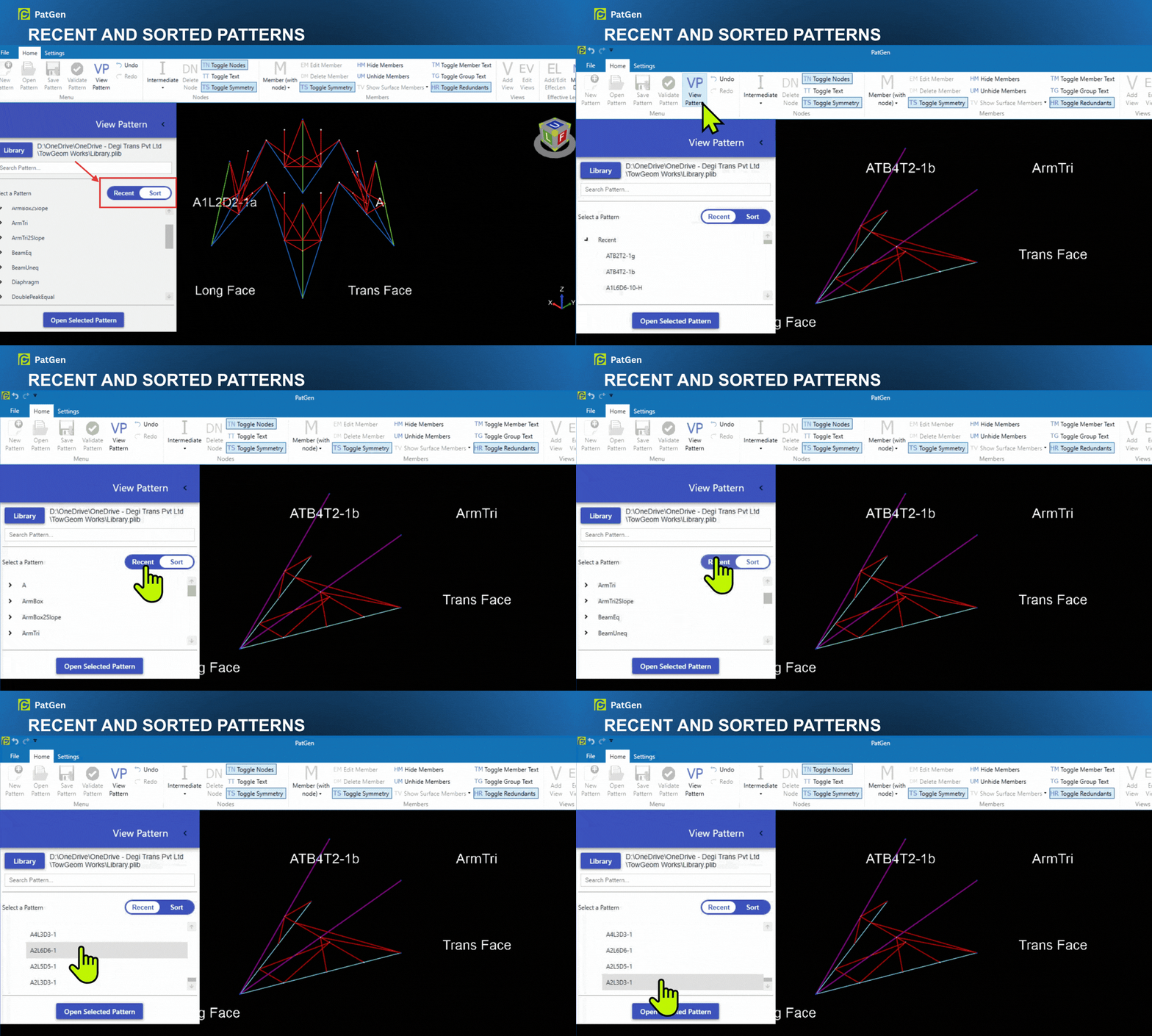 |
| Where to find it: PatGen > Home > Menu > View Pattern > Recent/Sort |
How to use:
- Open View Pattern from the PatGen Home tab.
- Use Recent/Sort to show recently used patterns or the required list order.
- Select the required pattern and open it.
|
|
7. Optional Members During Pattern Creation
What it does: Include panel-specific optional members when creating a PatGen pattern instead of adding those members afterward.
|
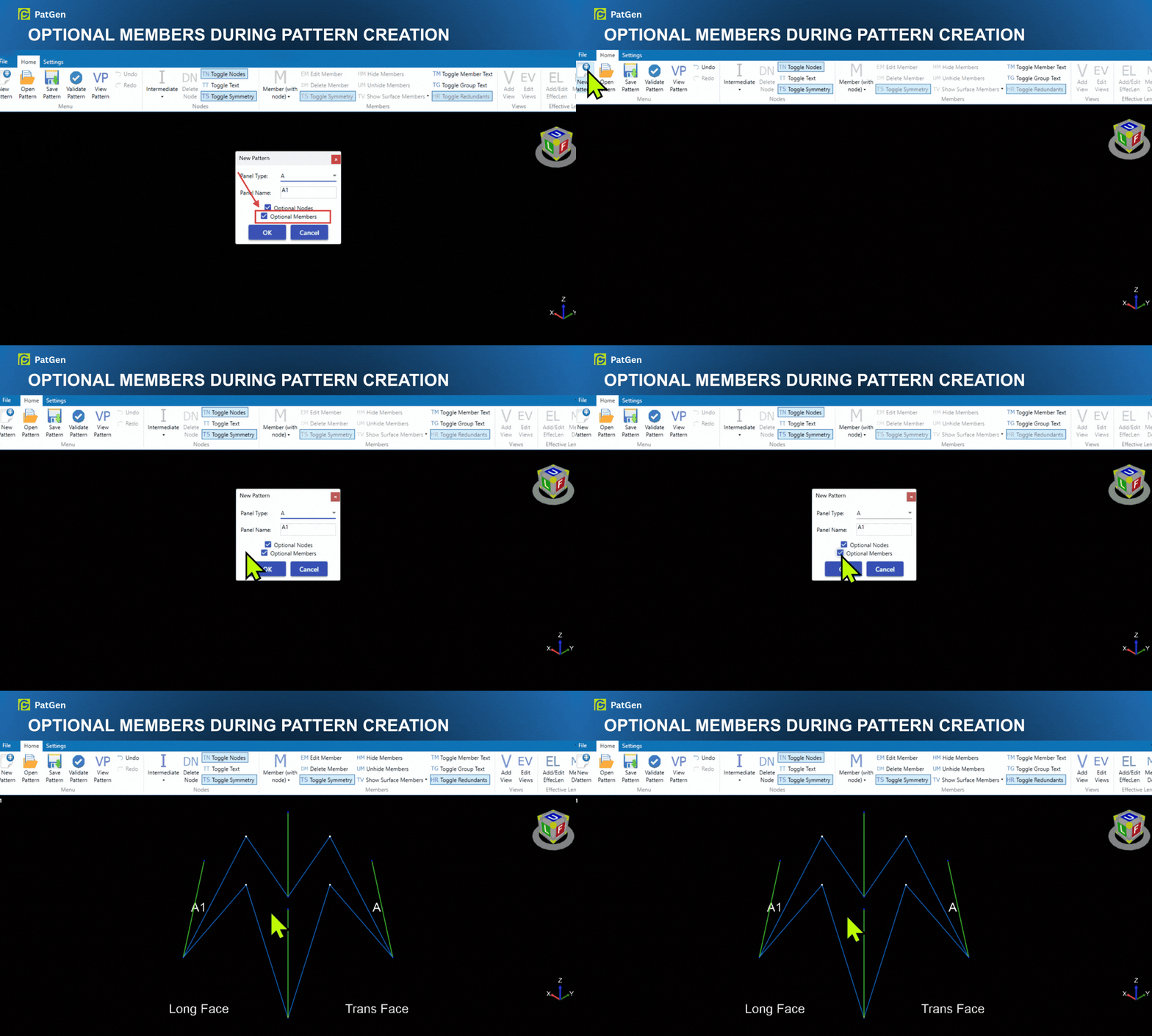 |
| Where to find it: PatGen > Home > Menu > New Pattern > Optional Members |
How to use:
- Choose New Pattern and select the required panel type.
- Enable Optional Nodes, then enable Optional Members when the selected panel type offers them.
- Confirm the dialog to create the pattern with the selected optional geometry.
|
|
8. Whole-Tower PatGen Validation
What it does: TowGeom now checks every generated tower panel with PatGen rules before output instead of validating patterns one at a time.
|
| Where to find it: TowGeom > Home > Execute > Validate |
How to use:
- Open or complete the tower inputs and choose Validate.
- Review the PatGen findings grouped under the affected panel headings.
- Correct reported pattern issues before running the final output.
|
Highlights:
- Validation covers generated body, crossarm, inclined-peak, and extension panels.
- Errors and warnings are grouped by panel so the affected tower position can be identified before output.
|
Additional Changes |
- Added an option to hide repeated PatGen node-edit messages when node operations divide or merge members.
- Improved license validation on authenticated Windows-proxy networks with bounded retries and timeouts.
- Secured automatic updates with a signed release manifest and verification of the downloaded installer before installation.
- Faster TowGeom output generation by batching Excel values and formulas for Angle Groups and Angle Members.
- Corrected body-slope calculations for rectangular panels, paired faces, and leg extensions.
- Improved Browse Files settings by showing the current input file path and dimming the inactive Project Specs or Input File source.
- TowGeom now starts more responsively with an immediate splash screen, parallel license checking, and background cleanup.
- Improved PatGen selection feedback and node-division validation during repeated edits.
- Improved PatGen node and member editing so IDs, groups, effective lengths, symmetry, and saved references remain consistent after topology changes.
- Corrected diaphragm surface detection for symmetry nodes and member midpoints so transverse and longitudinal members are classified against the intended panel segments.
- Fixed a PatGen validation issue that could incorrectly flag members assigned to the Other surface.
- Improved 2D AutoCAD clearance drawings for supported left and right suspension I-string arrangements: entries follow worksheet order, and a failed clearance item no longer leaves a partial drawing or changed AutoCAD settings.
- Shielding-angle validation for longitudinal double-peak towers can now suggest a verified left- or right-side peak projection, rounded upward to centimetre precision when the correction remains within panel limits.
|
|
Get TowGeom v3.6.06
In TowGeom, select Check Update on the ribbon and follow the prompts to download and install the update automatically.
Alternatively, download and run the MSI installer directly.
|
|
|
Regards,
Degi Trans
info@degitrans.com
Degi Trans Pvt Ltd · www.degitrans.comYou are receiving this TowGeom product-update notice because your organization has an active TowGeom license. To change the recipient for future release notices, contact us.
|